
Help
Installer guide
How to get verified, win jobs, do the work and get paid on Satcom Installer.
Getting started
Satcom Installer connects verified VSAT and satcom installers with integrators, service providers and ship operators. Clients post fixed VSAT, maritime, Starlink, OneWeb, earth station, repointing and maintenance jobs; you receive the ones that match your skills, quote or accept, do the work and get paid through the platform.
- Sign up and choose I'm an installer.
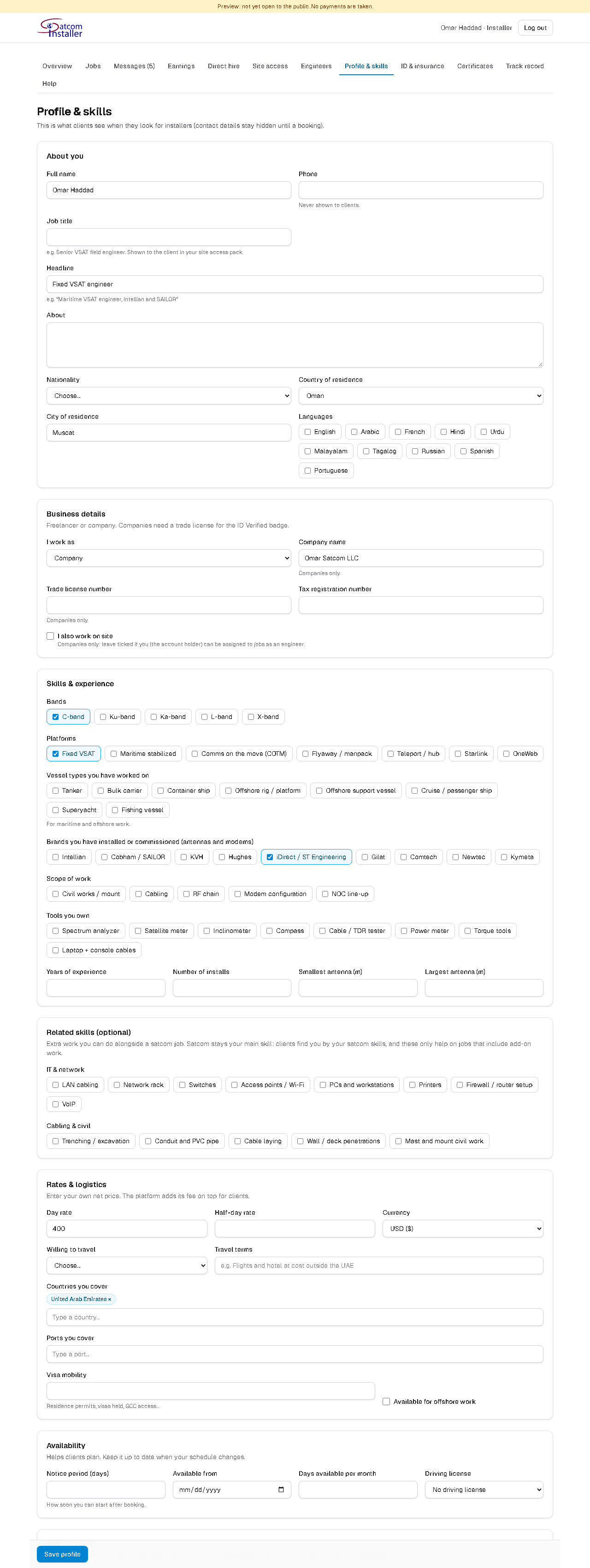
- In Profile & skills, say whether you work as a freelancer or a company (a company can add several engineers).
- Fill in the rest of your profile: your satcom platforms, bands, brands, tools, the countries you cover, and your day rate.
- Upload your ID & insurance and your Certificates. Our team checks them.
- Once your profile is activated, matching jobs reach you by email and phone notification.
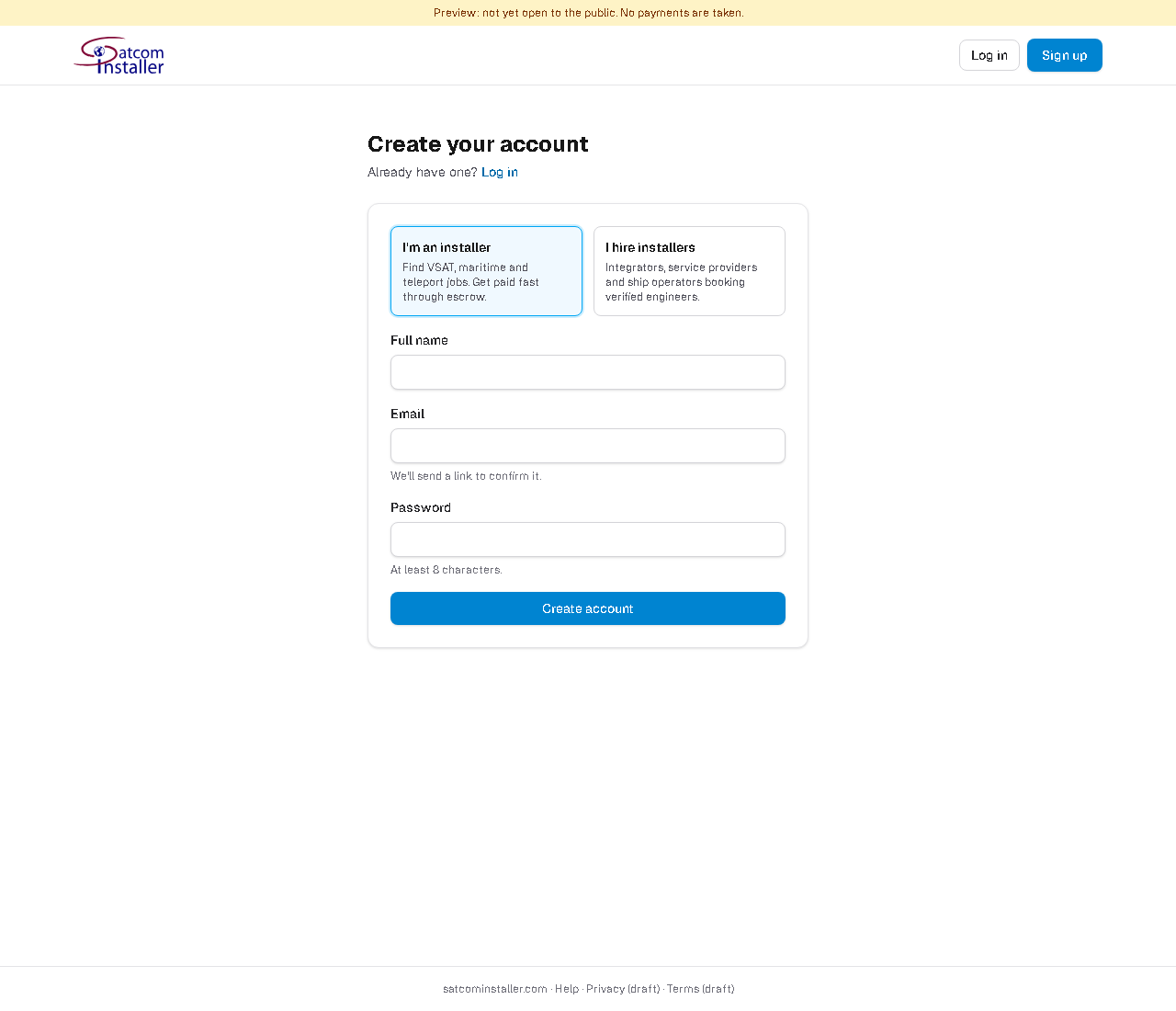
Your name is shown to clients as first name and initial (for example "Ali H.") until they book you. Never put phone numbers, emails or links in your profile text, quotes or messages: they're removed automatically.
Your profile, documents and badges
Clients choose installers they can trust. The more complete and verified your profile, the more jobs you're matched with.
- Satcom skills first: platforms (fixed VSAT, maritime stabilised, COTM, flyaway, teleport/hub, Starlink, OneWeb), bands, brands, antenna sizes, the work you do (civil, cabling, RF, modem configuration, NOC line-up) and your experience.
- Related skills (optional): IT & network (LAN, Wi-Fi, racks, VoIP) and cabling & civil. They help you stand out on jobs that include this work.
- Tools you own: spectrum analyser, satellite meter, inclinometer and so on. Jobs show which required tools you have.
- Job title and whether you work on site yourself (for company accounts).
In ID & insurance, upload your passport or national/Emirates ID, trade licence (companies), insurance, and your visa & residency for each country you work in. In Certificates, add each certificate with its number and expiry date. You're reminded before anything expires.
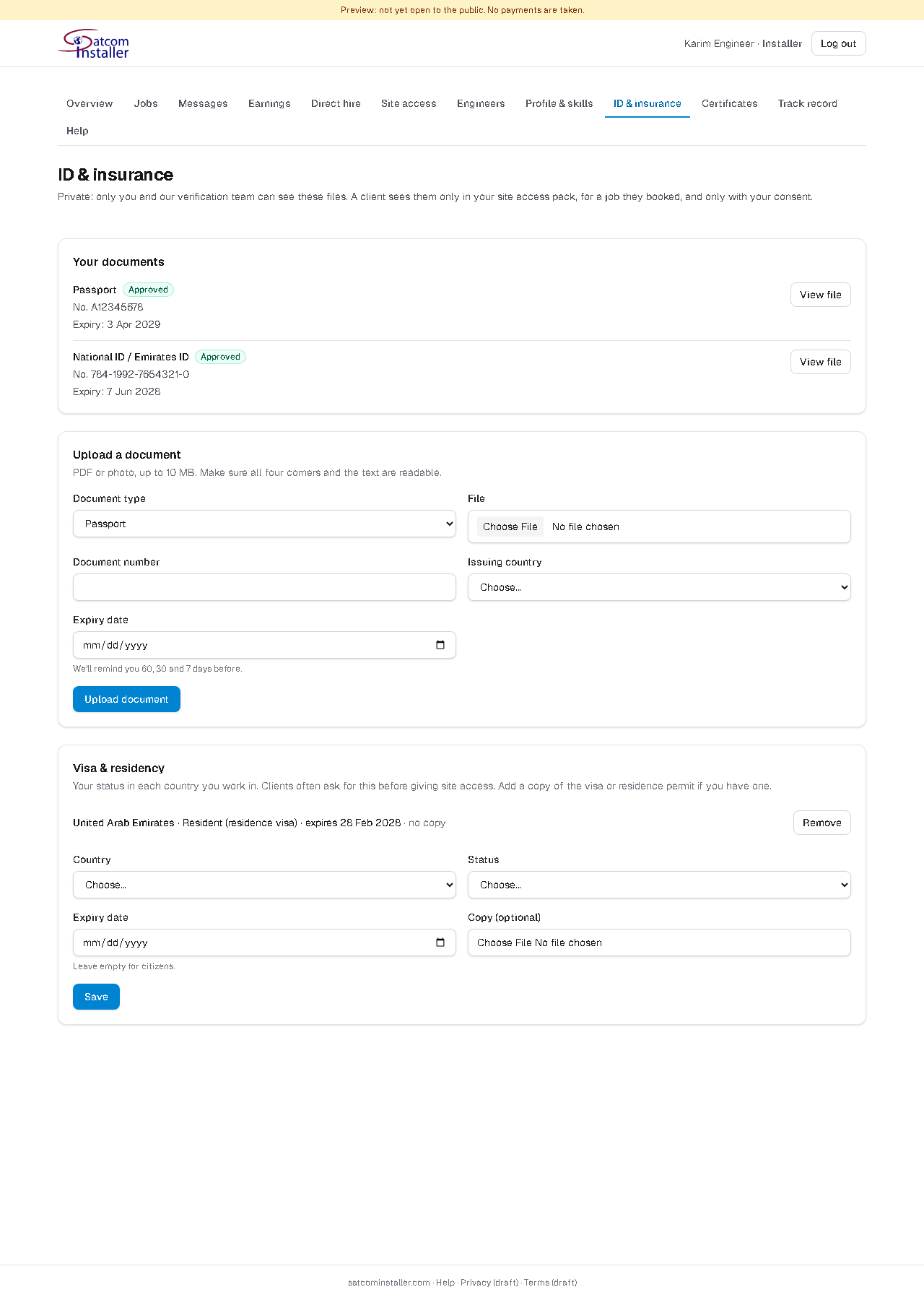
Our team checks your documents and awards badges:
- Level 1, ID Verified: approved ID (and trade licence for companies).
- Level 2, Certs Verified: your safety and OEM certificates checked.
- Level 3, Skills Assessed: technical questions, a short video interview and two reference calls.
- Level 4, Field Verified: earned automatically after 3 jobs completed and approved on the platform.
Your first job is on probation: clients see "New on the platform" on your quote. It goes away after your first approved job.
For companies: your engineers
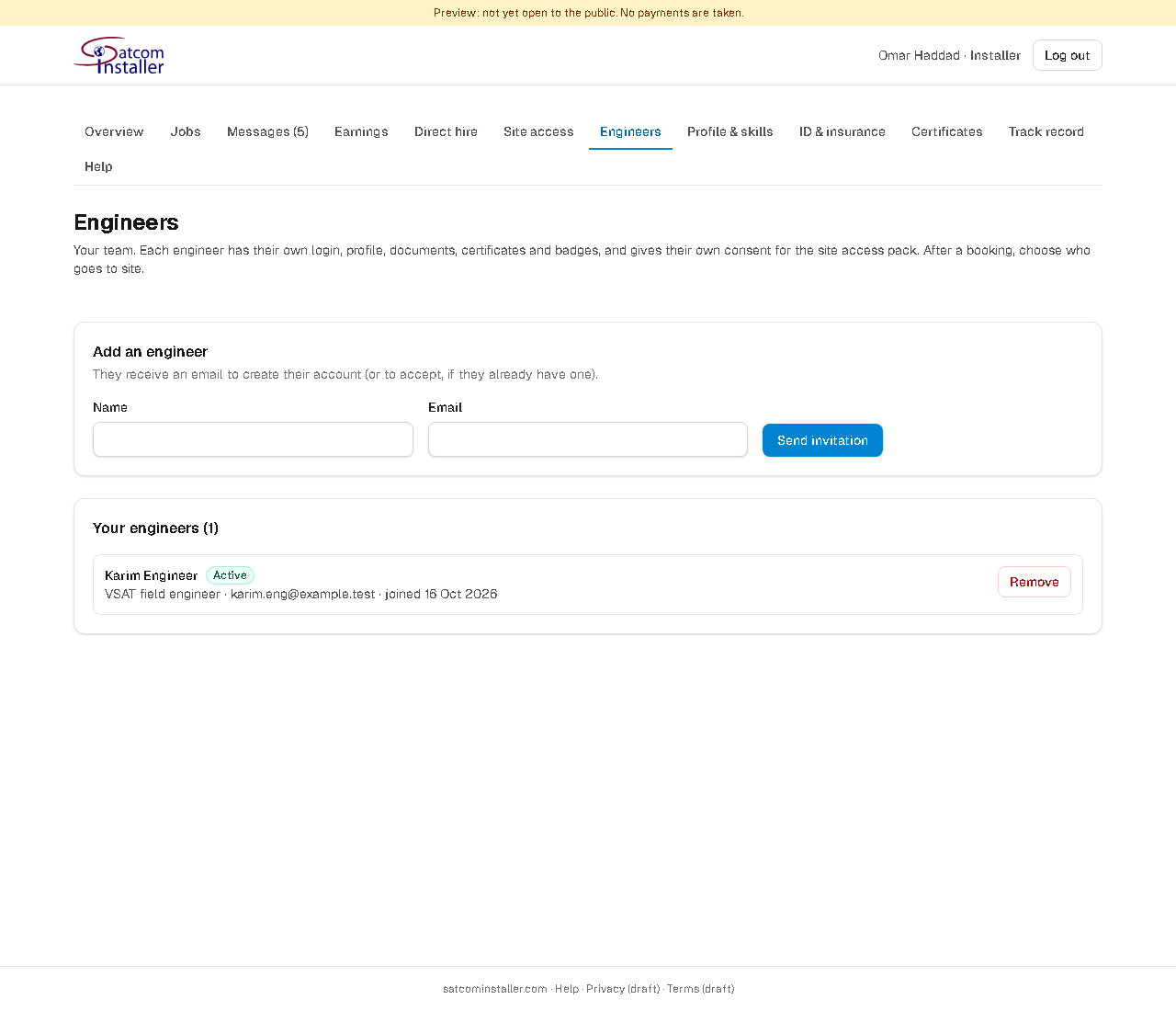
- In Engineers, invite each engineer by email. They create their own login and fill in their own profile, documents and certificates, and earn their own badges.
- If you also go to site yourself, tick I also work on site in your profile.
- When you're booked, choose who goes to site on the job page, and the engineers for each visit.
- Your engineers see the jobs they're assigned to (site details, task list, visits) but never the prices.
Your site access pack
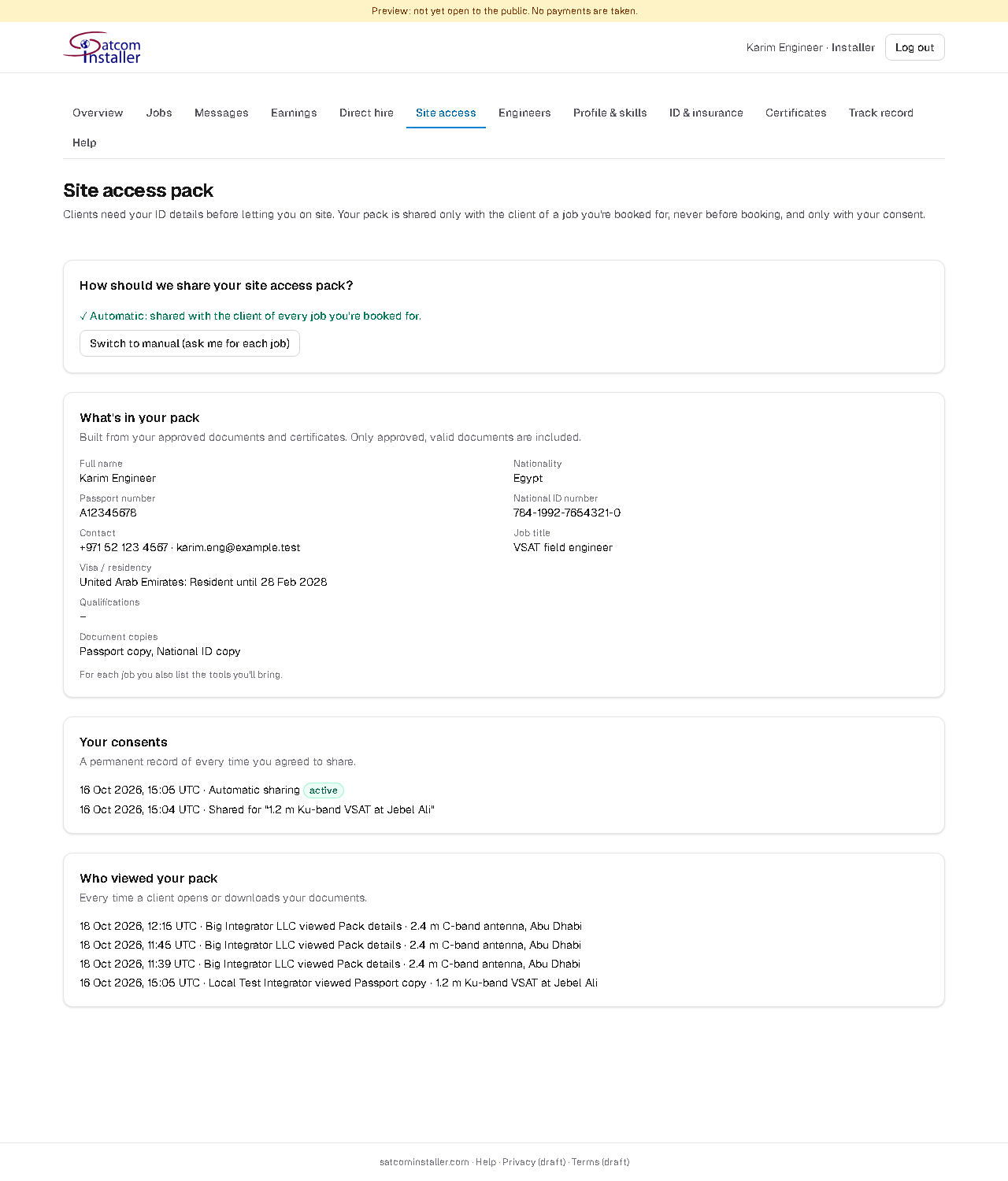
Clients need the details of everyone going to site (name, nationality, ID numbers, visa status, qualifications and tools) to arrange port or site access. This is your site access pack. You decide when it's shared:
- Manual (default): for each job you're booked on, you see exactly who will receive it and tick one box to share.
- Automatic: you tick two boxes once, and your pack goes to the client of every job you're booked for.
- Your pack is shared only with the client of a booked job, never before booking, never in search or on your profile.
- Only approved, valid documents are included. What's shared is a copy taken when you agree.
- The client can see it until 30 days after the job ends.
- On the Site access page you see every consent you gave and every time a client viewed or downloaded your documents.
Finding jobs and sending a quote
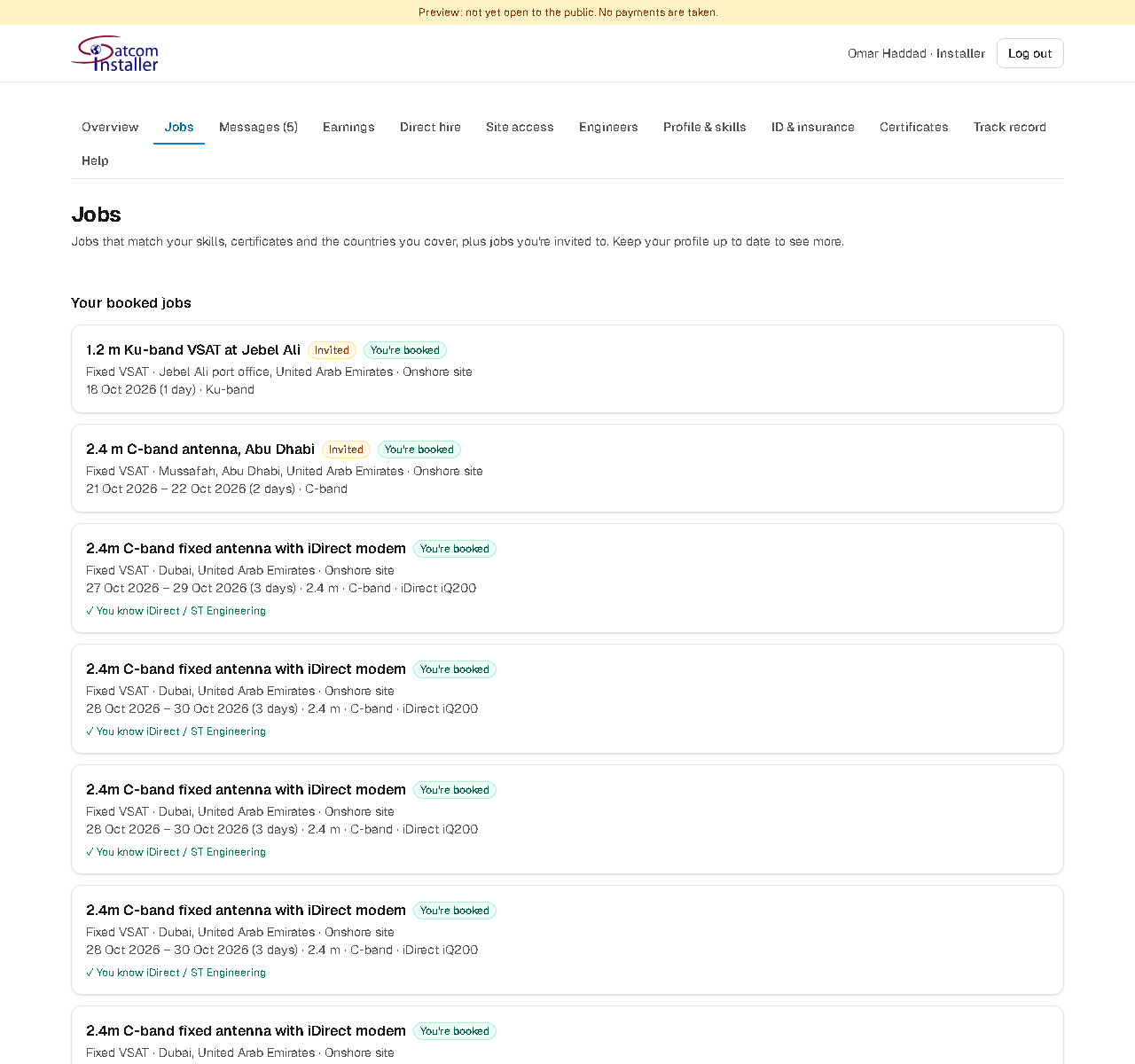
Jobs shows the jobs that match your skills, certificates and the countries you cover, plus jobs a client invited you to. Click Not interested to hide one.
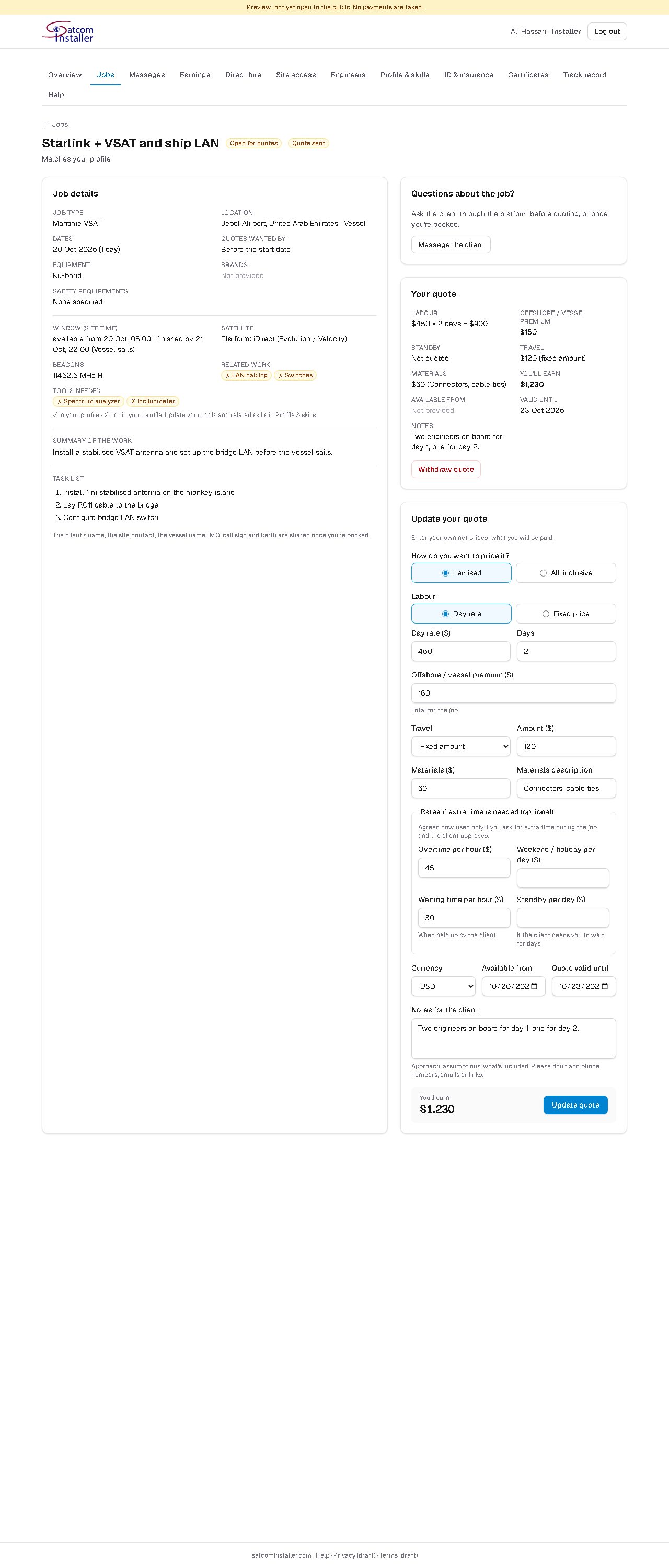
Each job shows the site and timing (for vessels: the port and the time window), the satellite and beacons, the task list, what the client supplies, the tools needed and any files. Tools and related skills are marked ✓ in your profile or ✗ not in your profile. You can message the client with questions before quoting.
For vessel jobs, the vessel name, IMO, call sign and berth are shared once you're booked.
Send your quote with your own price: what you'll be paid. Choose:
- Itemised: labour (day rate × days, or a fixed price), vessel/offshore premium, travel and materials.
- All-inclusive: one price that includes everything, including travel and accommodation. You also say how much of it is travel & accommodation; the client sees one price.
You can also give rates for extra time: overtime per hour, weekend/holiday per day, waiting time per hour and standby per day. They're only used if you later ask for extra time and the client approves it.
When you're booked
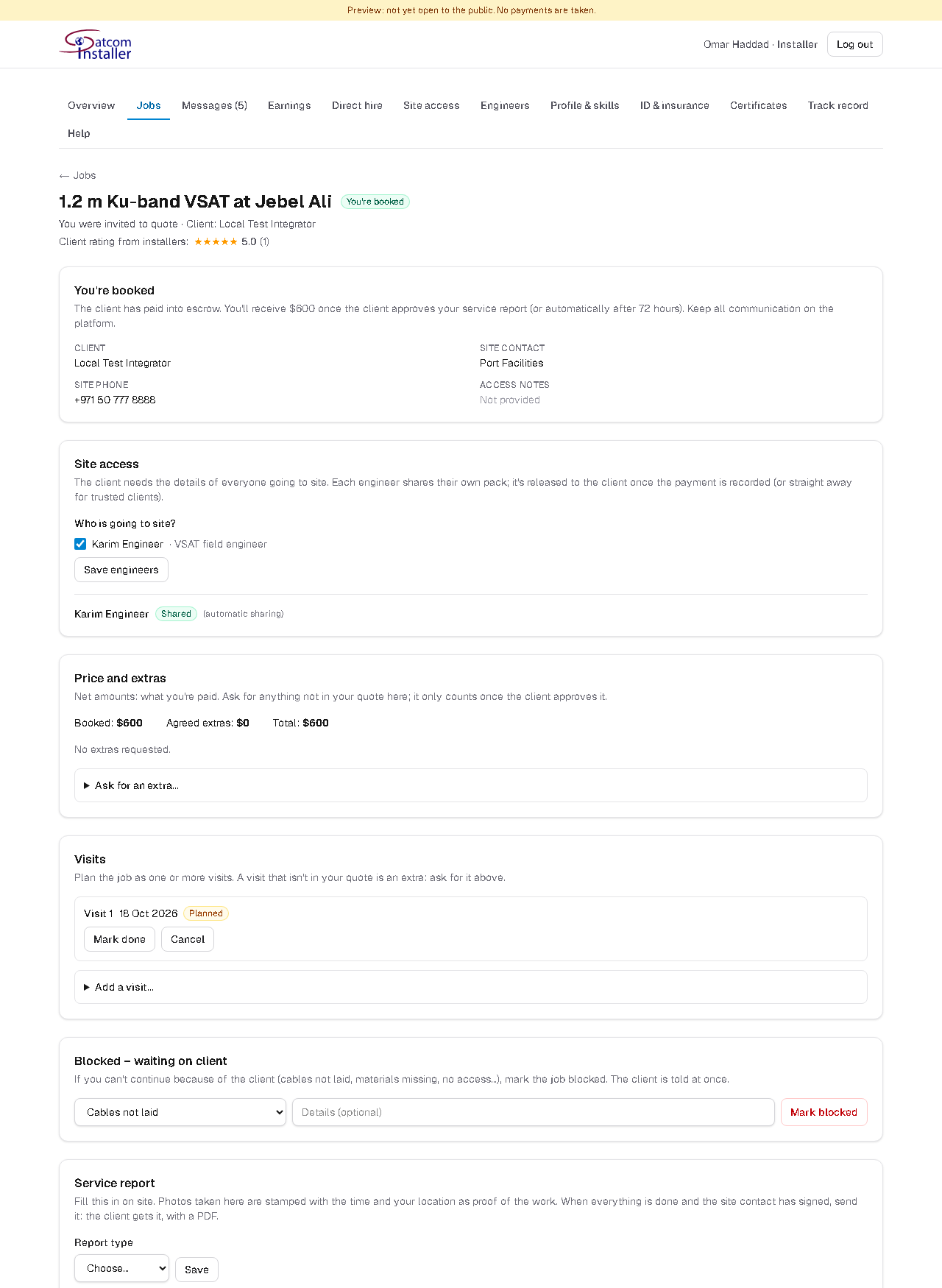
You're emailed when a client books your quote. The job page then shows the site contact, the client's company name and (for vessels) the vessel details.
- Site access: choose who goes to site; each engineer shares their pack.
- Visits: visit 1 is the job's start date. Add more visits (with the engineers going) and mark each one done.
- Price and extras: if the client needs more than your quote (extra work, materials, overtime, an extra visit), ask for it here with your price. It only counts once the client approves it, so wait for that before doing it.
- Blocked – waiting on client: if you can't continue because of the client (cables not laid, materials missing, no access, waiting for the NOC), mark the job blocked with the reason. The client is told at once. When it's solved, clear it: you're offered a waiting-time request at your agreed rate for the time lost.
Keep all communication with the client on the platform. It protects you if there's a disagreement, and sharing contact details to work around the platform can lead to suspension.
The service report
Fill in the service report on your phone during the job. When it's sent, the client receives it with a PDF.
- Report type (installation, maintenance, repair, survey).
- Tasks: mark each one Completed, Incomplete (say why) or Pending (to finish on a follow-up visit).
- Timesheet per day and engineer: travel, normal hours, overtime, holiday and waiting.
- Equipment (model, serial number, MAC, condition, location), spares and materials used, progress log and outstanding items.
- Photos and readings for the job type. Photos taken in the app are stamped with the time and your location as proof. Readings such as Es/No, C/N, cross-pol, transmit power, P1dB, beacon level or speed tests.
- Client sign-off: hand your phone to the site contact. They sign on the screen with a finger, and can add a stamp photo, a rating and remarks.
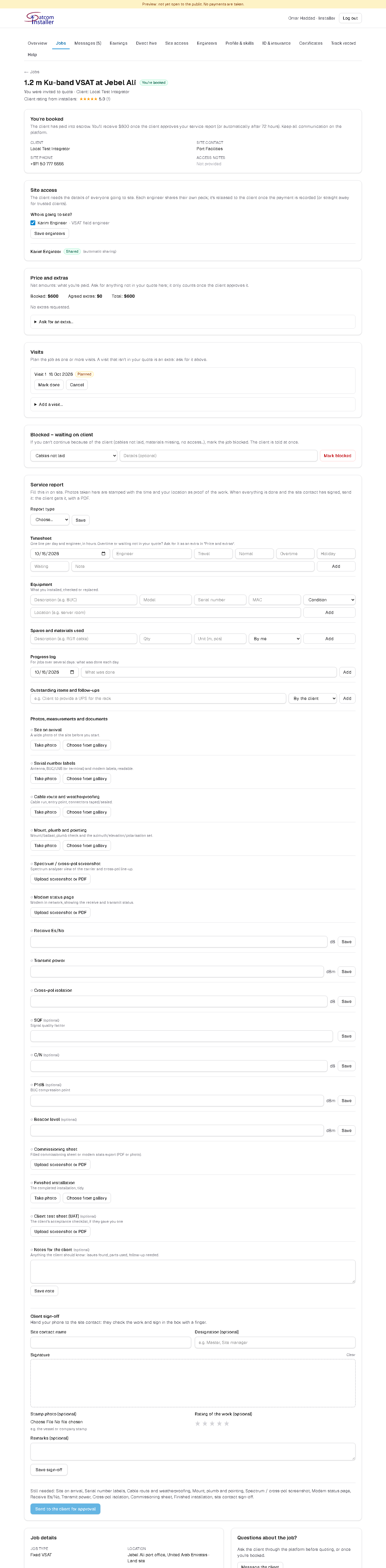
The client then approves the report, asks for changes, or approves only what's done (the pending tasks go to a follow-up visit, then you send the report again). If they don't answer, it's approved automatically after 72 hours.
Getting paid
- The client pays when booking; the money is held safely until the work is approved.
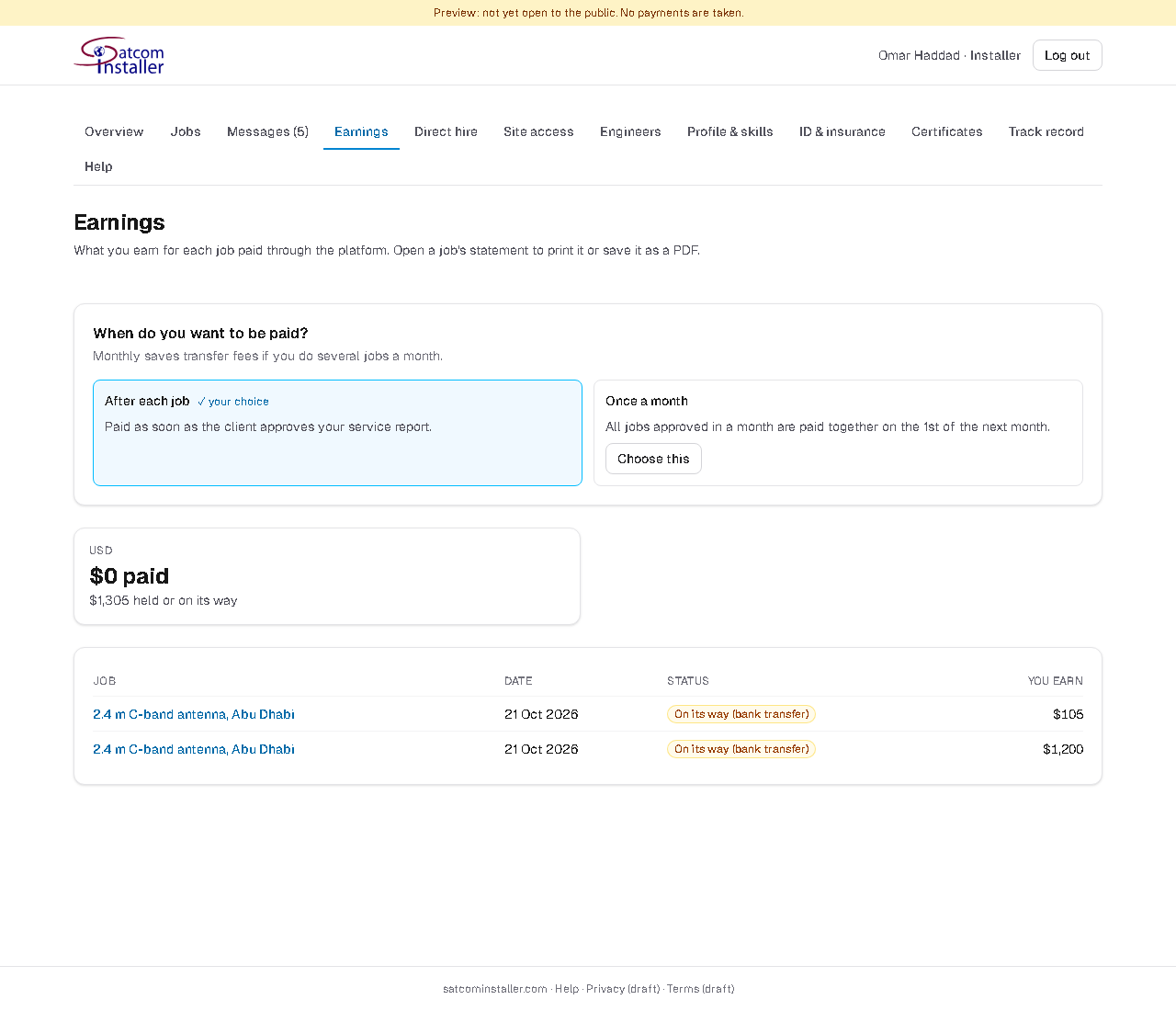
- You're paid after each approved job, or once a month (on the 1st, for the jobs approved the month before) if you prefer fewer transfers. Choose on the Earnings page.
- Installers based in the UAE can set up Stripe payouts once and are paid automatically. Others are paid by bank transfer (Wise or Payoneer).
- Earnings shows every job, its status and a printable statement. Agreed extras are paid with the job.
Urgent jobs
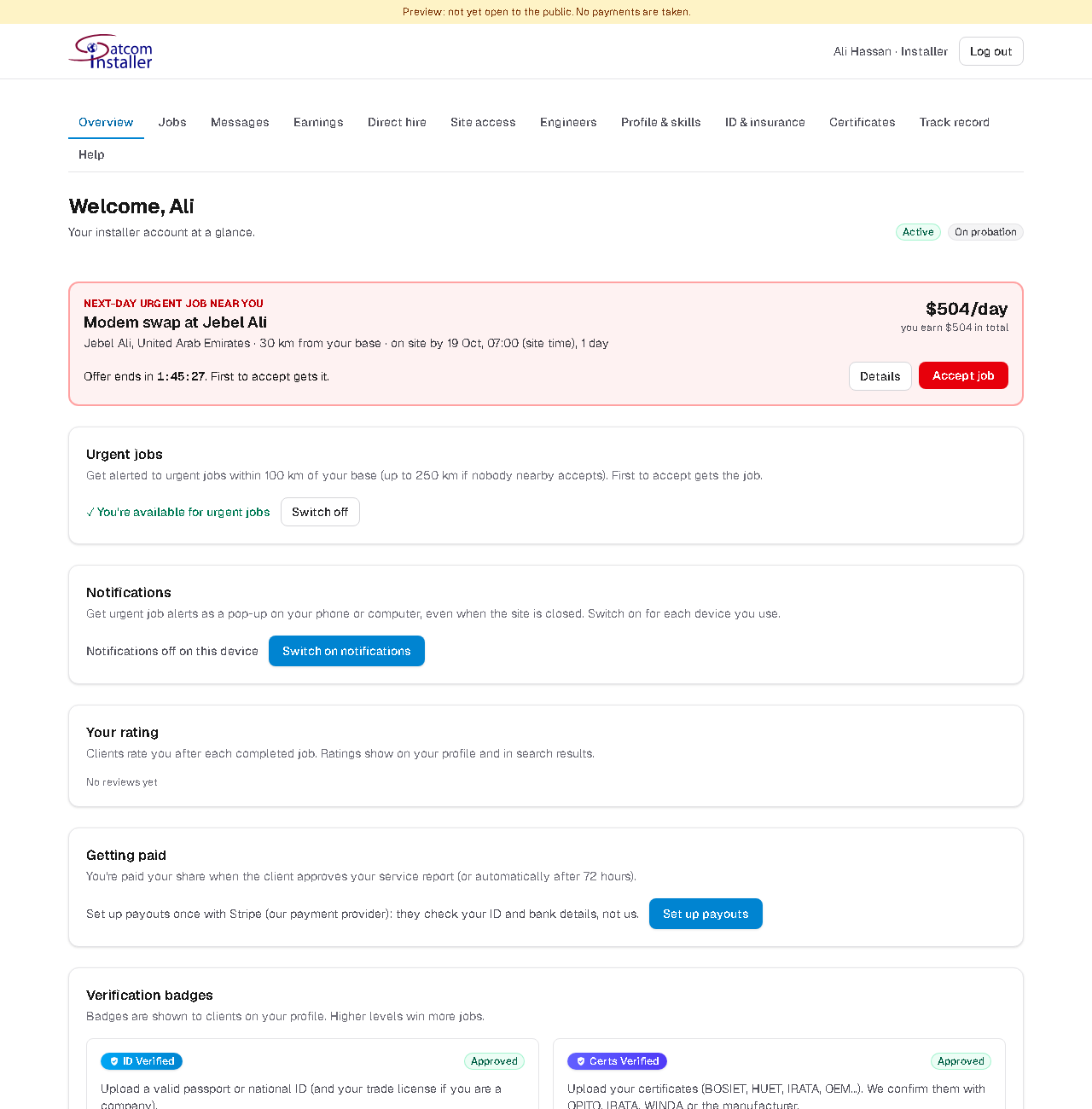
Clients sometimes need someone fast. If you have Level 3 (Skills Assessed), switch on Available for urgent jobs on your overview.
- Right now: you get 15 minutes to accept. Next day: someone must be on site by a set time tomorrow; you get 2 hours to accept.
- The offer shows what you'll earn, the distance from your base and a countdown. The first installer to accept gets the job.
- For next-day jobs you get a reminder 3 hours before the on-site time.
Only accept what you can do. A no-show pauses you from urgent jobs for 30 days (a second one removes you) and counts as a 1-star rating. If a genuine emergency stops you, report it on the job before the start.
Questions and answers
- Why don't I see any jobs?
- Check that your profile is activated, and that your platforms, bands, countries and certificates are filled in and approved. Jobs only reach installers who match the job type, band, location and safety requirements.
- Can the client see what I charge?
- The client sees an all-in price that includes the platform's fees. You always enter, and see, what you'll be paid.
- Can I change my quote?
- Yes, until the client books: send it again and it's updated. You can also withdraw it.
- The client wants extra work on site. What do I do?
- Ask for it under Price and extras on the job page, with your price. Do the extra work once the client has approved it.
- What if the client isn't ready when I arrive?
- Mark the job Blocked with the reason. When it's solved, clear the block and ask for waiting time at your agreed rate.
- How do I hire someone or get hired directly?
- A client can ask to hire you directly through Direct hire. If you accept and the client pays the direct-hire fee, you both receive each other's contact details.
- Who sees my ID documents?
- Only our verification team, and the client of a job you're booked on if you share your site access pack. Every client view is shown to you.
Screenshots show example data. Can't find what you need? Message us from your account.